距離上一篇 EDK2 編譯介紹(Windows) 竟然也快要一年了,中間陸陸續續寫了一些基本知識,這次繼續來介紹一下新的 EmulationPkg.
EmulationPkg 其實有點像是 Ovmf 的替代品,它會將 BIOS 建置成一個執行檔,讓你可以將 BIOS 當作一個 windows 程式班來處理,所以你可以直接用 debug tool 直接 attach 上去做除錯,如果要做的東西與硬體無關,那效率總算可以接近跟開發一般純軟體的速度了吧?
基本環境安裝
現在 edk2 每季更新一次,還是花點時間重新確認一次安裝環境,這次想要透過 Microsoft Visual Studio 做 EmulationPkg 的 Source Level Debug,所以這次的環境介紹會以目前最新的 VS2019 來開始。
下面這個 Script 會協助
透過 Chocolatey 安裝 git , tortoisegit , Python3 , nasm , wget , 7zip
安裝 Microsoft Visual Studio 2019 Community
 1
 2
 3
 4
 5
 6
 7
 8
 9
10
11
12
13
14
15
16
17
18
19
20
21
22
23
24
25
26
27
28
29
30
31
32
33
34
35
36
37
38
@ echo off
prompt $P$G
chcp 437 1 > nul
SETLOCAL ENABLEEXTENSIONS
SETLOCAL ENABLEDELAYEDEXPANSION
cls
echo Administrative permission required. Detecting permissions ...
net session > nul 2 >& 1
if %errorlevel% == 0 (
echo Administrative permissions confirmed.
echo .
) else (
echo Failure: Current permissions inadequate.
echo Set UAC = CreateObject^( "Shell.Application" ^) > " %temp% \getadmin.vbs"
echo UAC.ShellExecute " %~s0 " , "" , "" , "runas" , 1 >> " %temp% \getadmin.vbs"
" %temp% \getadmin.vbs"
exit /B
)
echo Install Chocolatey
@ " %SystemRoot% \System32\WindowsPowerShell\v1.0\powershell.exe" -NoProfile -InputFormat None -ExecutionPolicy Bypass -Command "[System.Net.ServicePointManager]::SecurityProtocol = 3072; iex ((New-Object System.Net.WebClient).DownloadString('https://chocolatey.org/install.ps1'))" && SET "PATH= %PATH% ; %ALLUSERSPROFILE% \chocolatey\bin"
choco install --force -y git tortoisegit Python3 nasm wget 7zip
if not exist " %ProgramFiles(x86)% \Microsoft Visual Studio\2019\Community\VC\Auxiliary\Build\vcvars32.bat" (
echo Install Microsoft Visual Studio 2019 Community
wget -x --no-check-certificate https://aka.ms/vs/16/release/vs_community.exe -O %temp% /vs_community.exe
%TEMP% \vs_community.exe --addProductLang en-US --add Microsoft.VisualStudio.Workload.ManagedDesktop --add Microsoft.VisualStudio.Workload.NativeDesktop --add Microsoft.VisualStudio.Component.VC.CLI.Support --add Microsoft.Component.MSBuild --includeRecommended --passive --norestart
)
if not exist C:\ASL\iasl.exe (
wget -x --no-check-certificate https://acpica.org/sites/acpica/files/iasl-win-20210105.zip -O %temp% /iasl-win-20210105.zip
7z x %temp% \iasl-win-20210105.zip -oC:\ASL
del /f /q %temp% \iasl-win-20210105.zip
)
rem Environment Vars (like PATH) have changed. Close/reopen your shell to see the changes (or in powershell/cmd.exe just type `refreshenv`).
refreshenv
ENDLOCAL
ENDLOCAL
上面這段請存成 *.bat, 並使用 Administrator 執行
安裝完畢後, 接著下載 edk2 source code
下載 edk2 source code
 1
 2
 3
 4
 5
 6
 7
 8
 9
10
11
12
rem Detail please check https://damn99.com/2021-03-09-git-crlf/
git config --global core.autocrlf false
git config --global core.filemode false
git config --global core.safecrlf true

git clone https://github.com/tianocore/edk2.git c:\edk2
cd /d c:\edk2
git submodule init
git submodule update

cd /d c:\edk2
git checkout tags/edk2-stable202102 -b edk2-stable202102
文章寫作時間最新的 edk2 release 為 edk2-stable202102
到這邊基本環境就安裝完成了,接著來 build edk2 buildtools,我們需要先將一些 edk2 用 C 寫的 tool 的執行檔編譯出來。
1
2
cd /d c:\edk2
edksetup.bat rebuild
建置 EmulationPkg
終於要開始 build EmulationPkg 了
1
2
3
4
5
6
7
cd /d c:\edk2
edksetup.bat VS2019
set NASM_PREFIX = %ProgramFiles% \NASM\
rem Please double check the installation path of Python
set PYTHON_HOME = C:\Python39
set PYTHON3_ENABLE = TRUE
build -a X64 -t VS2019 -p EmulatorPkg\EmulatorPkg.dsc -b NOOPT
執行看看
如果沒問題,產生出來的執行檔會產生在 c:\edk2\Build\EmulatorX64\NOOPT_VS2019\X64\WinHost.exe,直接執行看看。
可以看到直接開了兩個視窗出來,而且最後的內建 shell 也會直接將該目錄 mapping 成 fs0:,很方便喔
JIT Debugger
在進行下一步之前,我們可能需要先開啟 JIT(Just-In-Time) Debugger 來讓系統能夠攔截一些例外並讓我們能夠攔截並啟動 debugger 來觀察它。
複製下面這段文字並存成副檔名為 .reg ,接著點兩下匯入它。
1
2
3
4
5
6
7
Windows Registry Editor Version 5.00

[HKEY_LOCAL_MACHINE\SOFTWARE\Microsoft\Windows NT\CurrentVersion\AeDebug]
"Auto"=dword:00000001

[HKEY_LOCAL_MACHINE\SOFTWARE\WOW6432Node\Microsoft\Windows NT\CurrentVersion\AeDebug]
"Auto"=dword:00000001
匯入完成後需要重新啟動電腦。
透過它來學習吧
為了 debug 方便,我們嘗試在 Shell entrypoint 加上一個 __debugbreak(); 來強制觸發 break,重新建置後再次執行 WinHost.exe 卻發現看起來只要跑到 Shell 程式就自動關閉了,Debugger 卻沒有跑起來。
若不想啟動 JIT Debugger,也可以手動攔截,但要抓時間有點不方便,還是建議大家都啟動 JIT Debugger 的好。
, ReAttach 這個給 Visual Studio 用的小工具挺好用的推薦給大家。
若要手動 attach process,可以先啟動 Visual Studio 2019, 但必須確保是使用管理者權限開啟,因為 attach 到別的 process 若權限不足是無法操作的。
然後我們重新執行 WinHost.exe,並在執行到我們有加入 __debugbreak(); 這個點之前先快點 attach 它。
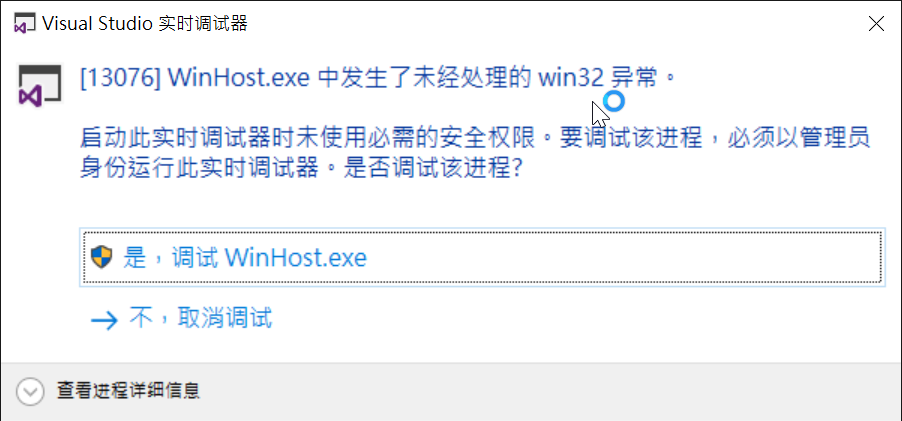
這樣就成功了,而若有開啟 JIT Debugger 的人,執行到 __debugbreak(); 就會自動跳出下面的畫面詢問使用者。
另外額外補充的是,有個 ReAttach 小工具可以方便你快速重新 attach 同一個 process 用的。操作看看吧。
接下來就跟一般 Visual Studio 操作都一樣了,就不再贅述。
延伸閱讀